

Congratulations on getting introduced to the client!
What’s the next step? It’s time to send the perfect introduction email.
Where Can I Send A Message to the Client?
After you’ve been matched to a client, you’ll be introduced via email and through the messenger system.
Via Email
You can also make your introduction through the client’s email address.
You can respond to the same intro message sent by our Support Team or you can also create an entire new email.
If you like, you can send an email and a message through the messenger system.
Through the Messenger System
You’ll receive a notification to your email and through your inbox inside your FreeUp account.
Once you receive the introduction notification, make sure to message the client within one business day through the messenger system.
How Can I Access My Inbox?
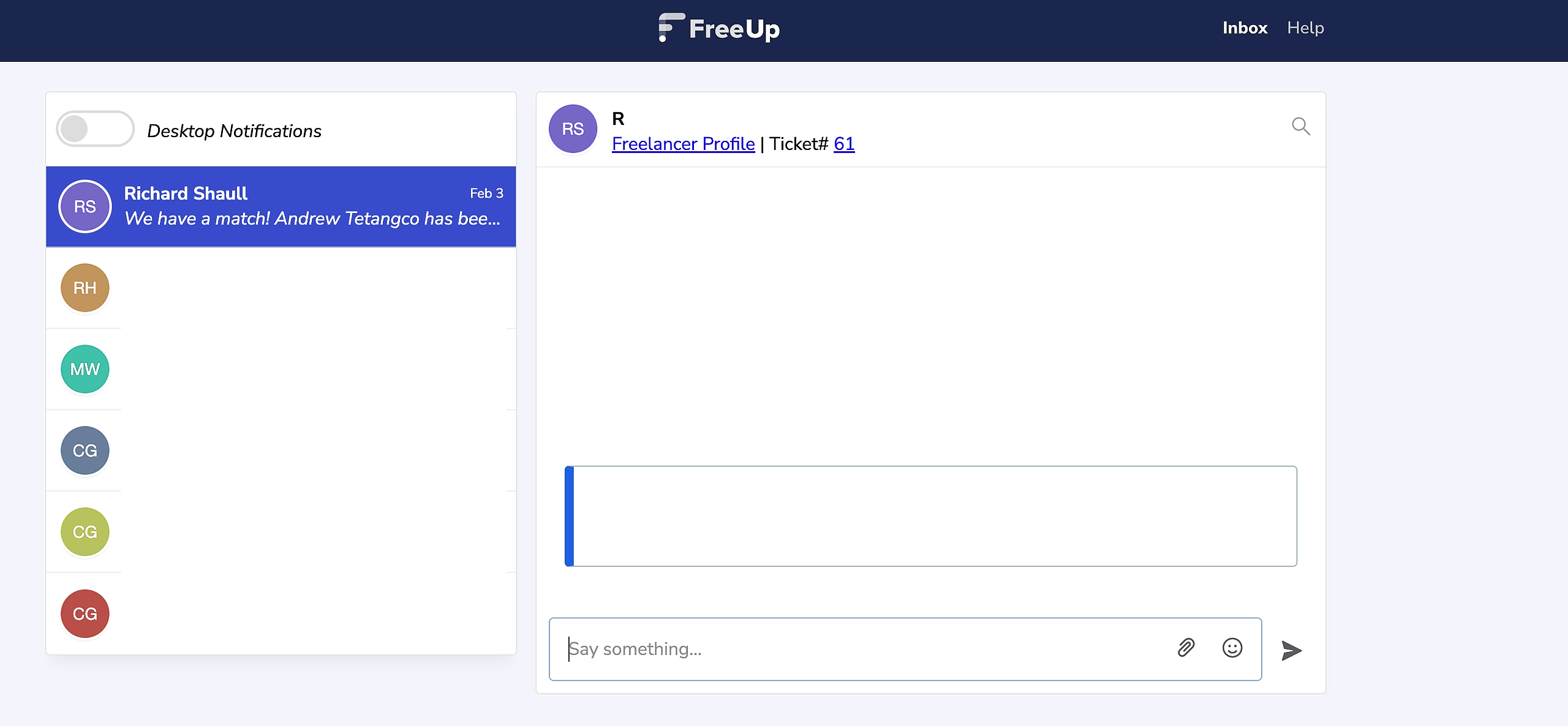
From your FreeUp account dashboard, click on the “Inbox” button in the upper right corner of your screen.

Clicking that button will bring you straight to your message inbox to access any previous messages.
How Can I Send A Message To My Active Clients?
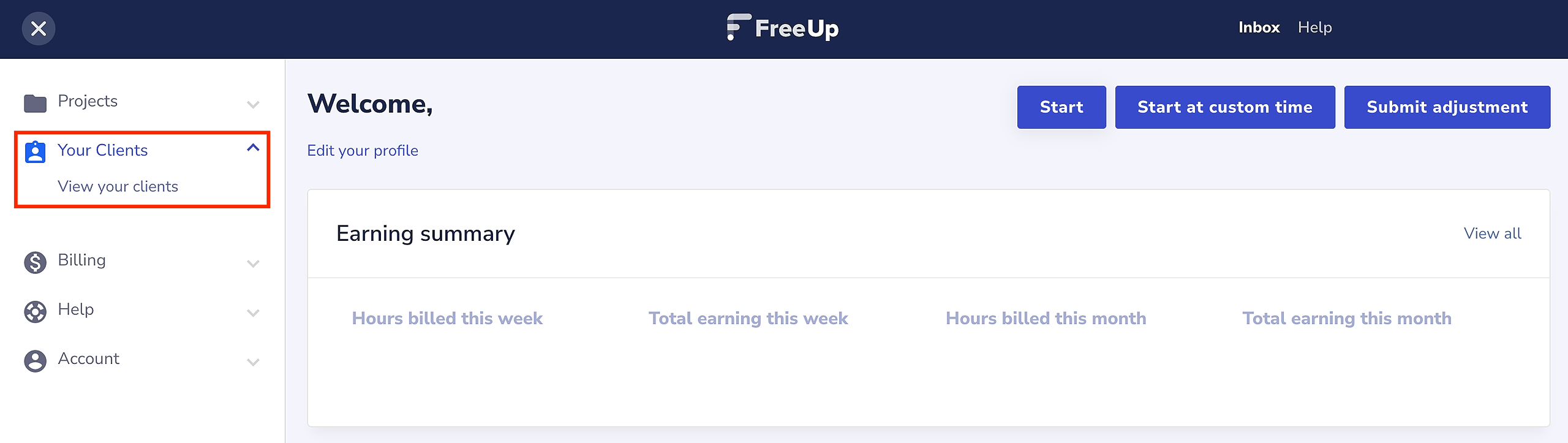
From your FreeUp dashboard, click the “Clients” button on the menu to access all of your clients (active or paused).
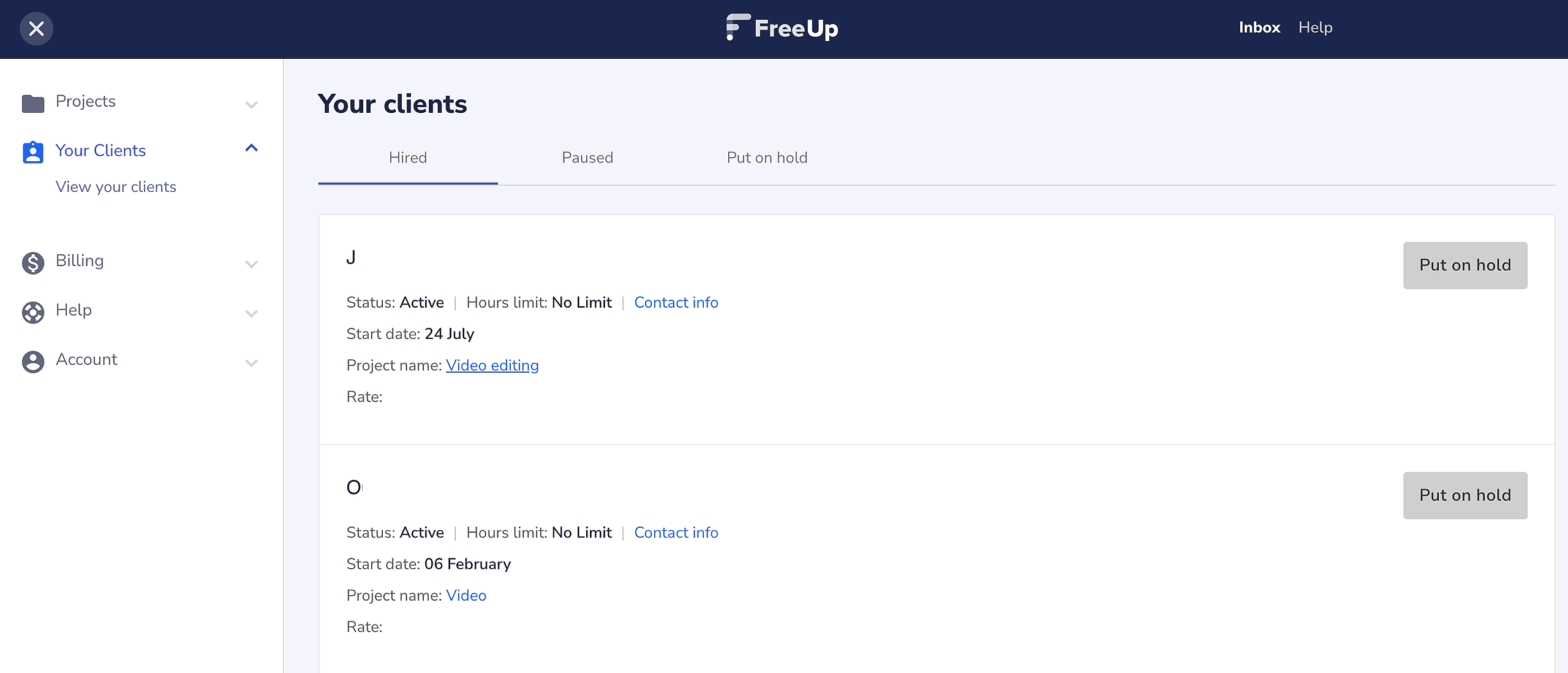
Under the Hired tab, you will see the list of your active clients. Then, click the Project link and you'll be directed to that client's page. From there, you can start messaging your active client.
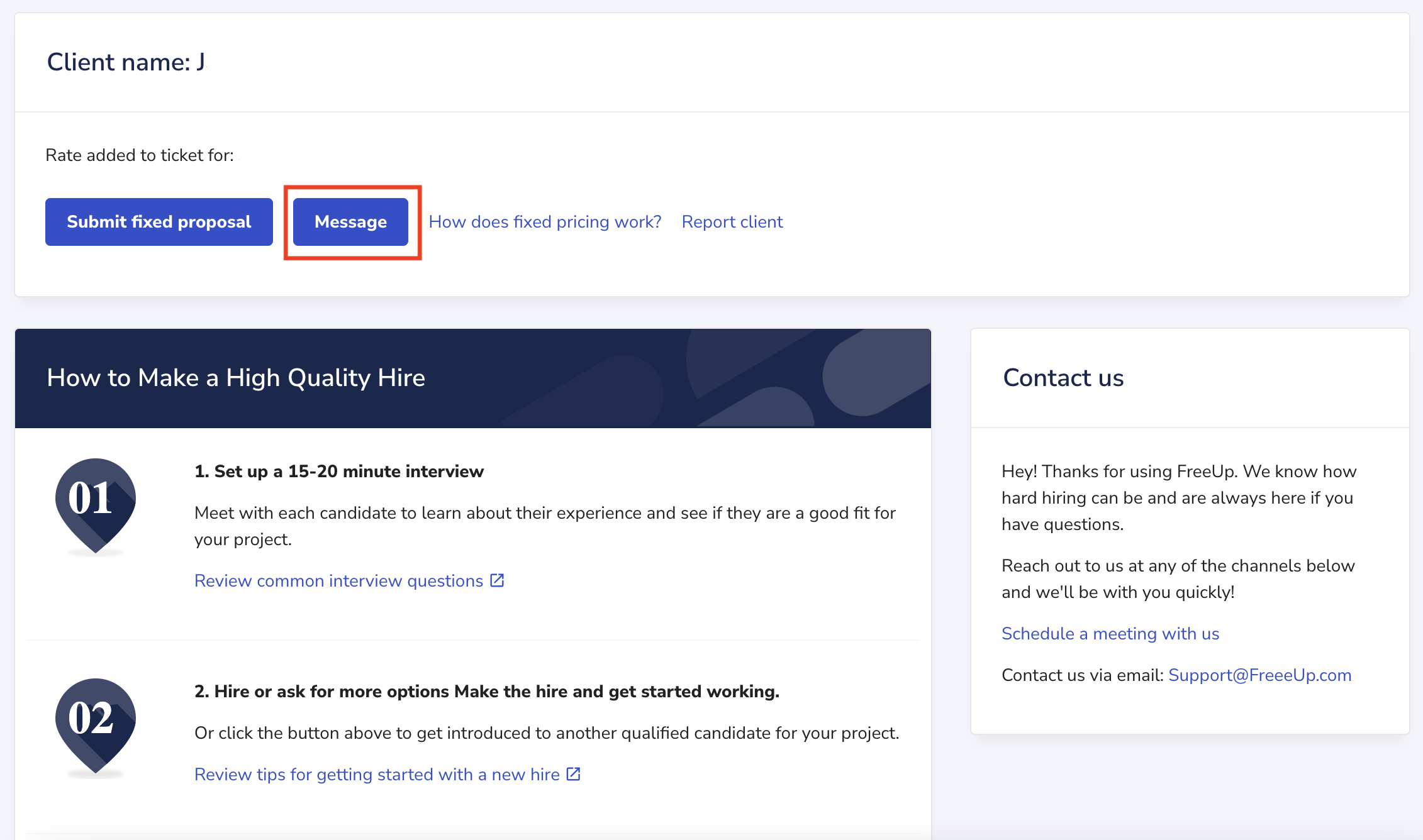
The messenger system makes it easy to communicate with your clients.
Please let us know if you have any questions or concerns!